
The short answer: use the Kaspersky Setup Wizard
To uninstall Kaspersky on Windows, open Start > Settings > Apps. Windows 11 lists Installed apps; Windows 10 uses Apps & features. Find the Kaspersky product and choose Uninstall. If it is missing, try Start or Control Panel. Windows opens the Kaspersky Setup Wizard.
Follow the wizard. It may request a configured removal password, offer to save subscription or settings information, and ask you to confirm. Kaspersky warns that the PC will be unprotected after removal; a restart may be required. Save account details and plan replacement protection first.
Do not start with Kavremover. Kaspersky says to use it only when Customer Service recommends it for a removal that standard Windows tools cannot complete. Uninstalling the app also does not cancel recurring billing.
How to uninstall Kaspersky on Windows: what the normal flow does
Windows supplies the entry point; the installed Kaspersky product's Setup Wizard performs the removal. Choosing Uninstall in Settings is not permission to delete folders or services yourself. Let the wizard remove recognized components and use official support if its screens or errors differ from the documented flow.
Windows 11 uses Settings > Apps > Installed apps; Windows 10 uses Settings > Apps > Apps & features. This is the normal way to uninstall Kaspersky on Windows; it does not require the separate Kavremover utility. Microsoft also documents the Start menu and Control Panel > Programs and Features. Labels vary by Windows build, so identify the installed Kaspersky product before selecting it.
Before uninstalling Kaspersky, save what you may need
Record the My Kaspersky account email, product name, and subscription provider. Keep any activation code or receipt private for a possible reinstall. The wizard may offer to save subscription information or selected settings; options vary by product and region, so read the prompts rather than assuming each choice is available.
Review quarantine before removal if you need a detected file: Kaspersky says quarantined files become unavailable after removal until a Kaspersky app is installed again. If the PC will stay online, prepare replacement protection and check it after the restart. Uninstalling does not remove the account or stop billing.
Windows 11 and Windows 10 uninstall steps
These steps show how to uninstall Kaspersky on Windows through its supported Setup Wizard. Save your work and be ready to restart.
1. Confirm the product and device owner
Confirm the product name and that you are allowed to remove it. On an employer- or school-managed computer, ask the administrator first; a security policy may require the software.
2. Open the Windows uninstall entry
Windows 11: Start > Settings > Apps > Installed apps, then open the product's More menu and choose Uninstall. Windows 10: Start > Settings > Apps > Apps & features. If the entry is missing, try Start or Control Panel > Programs and Features.
3. Follow the Kaspersky Setup Wizard
Continue through the wizard's prompts. A removal-password screen appears only if a password was configured. Use the authorized password; if it is unknown, contact the device owner or Kaspersky Support instead of trying a bypass.
4. Choose whether to preserve subscription or settings
If offered, choose whether to save subscription details or retain selected settings for reinstall. This does not back up personal documents or keep protection active. Review needed quarantine items first because Kaspersky says they become unavailable after removal.
5. Confirm removal and let it finish
Read the warning that the PC will be unprotected and confirm only if you intend to remove the product. Let the wizard finish. If it requests a restart, save other work and restart to complete removal.
6. Restart and verify the result
After Windows starts, check that Kaspersky is no longer listed as installed. Open any replacement security product and check its status; an app disappearing from Settings does not prove another product is configured or that a scan ran.
7. Escalate only when the standard flow cannot remove it
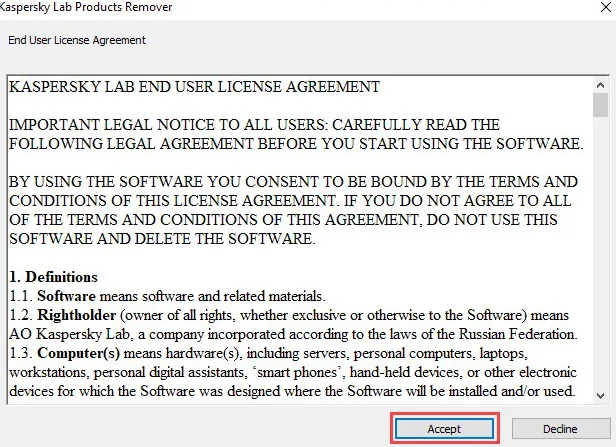
If the wizard fails, note the error, restart, and retry the supported flow. If removal still fails, contact Kaspersky Support. Use Kavremover only when Customer Service recommends it; its instructions warn that license information and settings can also be removed.
Which Kaspersky removal route fits your Windows problem?
Use the Setup Wizard for routine removal. Ask support or an administrator when that route cannot finish; do not turn a password or policy prompt into a force-removal attempt.
| Situation | Next step |
|---|---|
| Kaspersky appears in the Windows app list | Choose Uninstall and follow the Kaspersky Setup Wizard. |
| The Settings entry is missing | Try the Start menu or Control Panel program list, as Microsoft documents. |
| The wizard asks for a password you do not know | Ask the device owner or Kaspersky Support; do not bypass the prompt. |
| This is a work or school computer | Contact the organization administrator before removing managed security. |
| Standard removal fails completely | Save the error and ask Kaspersky Support whether Kavremover is appropriate. |
Troubleshooting when Kaspersky will not uninstall
Match the symptom to a supported next check. Avoid registry edits, service deletion, and third-party cleaners.
| What you see | What to do |
|---|---|
| Kaspersky is not in Installed apps | Search Start and Control Panel > Programs and Features. If it is absent, ask the PC administrator whether another account owns the installation. |
| The wizard requests an uninstall password | The prompt appears when a removal password was configured. Use the authorized credential or contact the owner/support team; do not try a bypass. |
| The uninstall wizard reports an error | Save the message, restart, and retry once. If it returns, send the details to Kaspersky Support and ask whether the removal utility is appropriate. |
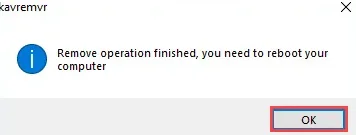
| The app still appears after removal | Complete the requested restart. Kaspersky says removal can remain pending until Windows restarts or is shut down and started again if you cancel an immediate restart. |
| Protection status is unclear afterward | Open Windows Security and the replacement product to review status. If protection is off or unclear, arrange a supported option or ask an administrator for help. |
| You want billing or an account removed too | Handle billing separately with the seller or provider. Uninstalling removes local app components; it does not cancel renewal or delete an account. |
Keep the PC protected during the change
Kaspersky warns that the computer and personal data will be unprotected after removal. If it will stay online, plan replacement protection before confirming and check its status after restarting. On a managed device, follow the administrator's process. Do not use unofficial removers, disable Windows controls, or delete program files by hand.
Kaspersky Windows uninstall FAQ
Can I uninstall Kaspersky without Kavremover?
Yes. Use Windows Settings, Start, or Control Panel to open the Kaspersky Setup Wizard. Kaspersky says to use Kavremover only when Customer Service recommends it for an incomplete standard removal.
How to uninstall Kaspersky on Windows 11?
Open Start > Settings > Apps > Installed apps, find the product, and choose Uninstall from its More menu. Follow the Setup Wizard.
How do I remove Kaspersky from Windows 10?
Open Start > Settings > Apps > Apps & features and choose Uninstall for the product. Start or Control Panel > Programs and Features are alternatives.
Can I uninstall Kaspersky if I forgot the password?
If a password was configured, the wizard may require it. Ask the device owner or Kaspersky Support; contact the administrator for a company or school PC.
Does uninstalling Kaspersky cancel my subscription?
No. Removing the app does not cancel billing or delete a My Kaspersky account. Manage renewal with the provider that sold the plan.
Do I need to restart after uninstalling Kaspersky?
The wizard may request it. If you cancel an immediate restart, Kaspersky says removal can remain pending until Windows starts again.
Official instructions
- Kaspersky Support: How to uninstall the applicationSetup Wizard prompts, optional subscription and settings preservation, removal warning, and restart guidance.
- Microsoft Support: Uninstall or remove apps and programs in WindowsWindows 10 and Windows 11 entry points in Settings, Start, and Control Panel.
- Kaspersky Support: Kavremover removal utilityExceptional removal path, Customer Service recommendation, and license/settings cautions.