
The short answer: cancel renewal with the billing provider
If you purchased directly from Kaspersky, sign in to the official account or subscription area and look for the subscription management or automatic-renewal control. Save the confirmation after renewal is turned off, because the exact labels can vary by country and product.
If you subscribed through Apple, Google Play, an internet provider or another reseller, that provider controls the recurring charge. Kaspersky Support can explain the product, but it may not be able to cancel a store-managed subscription for you.
Uninstalling Kaspersky, removing a device from the account and canceling a subscription are separate actions. Cancel the billing first, preserve the account and receipt details you may need, and keep protection active until you have a replacement plan if the device still needs security software.
What does canceling a Kaspersky subscription mean?
Canceling a Kaspersky subscription normally means stopping its next automatic renewal. It does not always end protection immediately. Many subscriptions remain available until the paid term ends, but the billing page or confirmation email is the authority for your account.
The phrase Kaspersky subscription cancel can also describe several different tasks: stopping auto-renewal, requesting a refund, deleting a My Kaspersky account, removing a device, or uninstalling the application. Treat these as separate decisions so you do not lose access or assume a payment has been reversed when only the local app was removed.
Before you begin, locate the receipt, the account email, the product name and the purchase channel. Avoid entering your password on a page reached through an unsolicited email. Start from Kaspersky's official support or account domain, then confirm that the subscription and renewal date match your own record.
Which account should you use?
A direct Kaspersky purchase is usually managed through the Kaspersky account or the subscription area linked from official support. The account may show the current plan, covered devices, renewal date and a control for automatic renewal. If the control is missing, contact the official support route instead of guessing at a hidden URL.
Apple App Store and Google Play subscriptions are managed in the store account that made the purchase. A Kaspersky login can still be useful for product access, but it does not replace the store's billing controls. Subscriptions bought from a telecom provider, retailer or another marketplace must be changed through that seller's account or support team.
If you cannot identify the provider, search the payment statement or receipt for the merchant name and compare it with the Kaspersky account. Do not cancel the wrong service, create a second account to bypass an entitlement check, or send a full payment card number in a public forum.
How to cancel Kaspersky subscription renewal
Use these steps in order. They are designed to prevent the most common mistake: uninstalling the app while the renewal remains active.
1. Save the account and receipt details
Record the account email, product or plan name, renewal date and order reference. Keep the activation code or receipt private. These details help official support distinguish a direct purchase from a store or reseller subscription.
2. Identify the billing provider
Check the receipt, bank statement or subscription list. Choose Kaspersky, Apple, Google Play, an internet provider or another reseller based on the merchant that charges you, not only the application installed on the device.
3. Open the provider's official account
Start from Kaspersky Support for a direct Kaspersky purchase, or from the official Apple, Google Play or reseller account for a store-managed purchase. Sign in only on the provider's trusted domain or app.
4. Turn off automatic renewal and confirm
Open subscription management, choose the renewal or cancellation control, read the final date and confirm. Save the confirmation page or email. A screen that only removes a device or deletes an app is not proof that billing was canceled.
5. Decide what happens to the app and protection
Keep Kaspersky installed until the paid term ends if you still rely on its protection, or follow the separate official uninstall guide. If you switch products, plan the replacement before removing real-time protection from the device.
Cancellation route by purchase situation
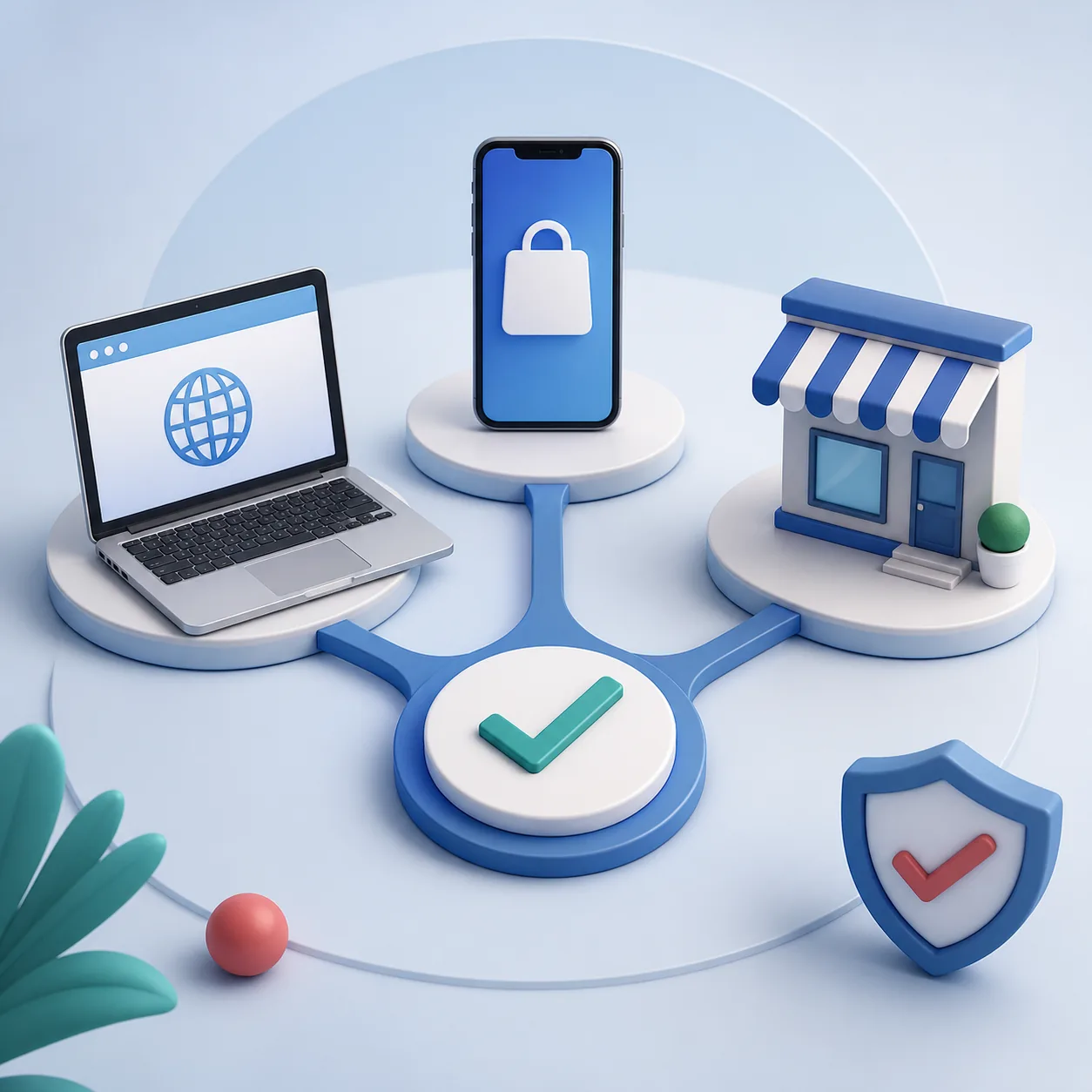
The same Kaspersky app can be linked to different billing systems. This table is a quick boundary check, not a promise that every country shows the same menu. Follow the provider named on your receipt.
If a route does not match your screen, stop before confirming. Take a screenshot for your own record without exposing passwords, full card numbers or license keys, then use the official support channel for the account that was charged.
| Purchase or problem | Recommended action |
|---|---|
| Bought from Kaspersky directly | Use the official Kaspersky account or subscription-management route to stop automatic renewal. |
| Bought through Apple App Store | Manage or cancel it in the Apple account that made the purchase; deleting the app is not enough. |
| Bought through Google Play | Open Google Play subscriptions for the purchasing account and confirm the renewal state there. |
| Bought from a telecom provider or reseller | Use that provider's billing account or support team; Kaspersky may not control the charge. |
| You only want to remove Kaspersky from a device | Use the relevant Windows or Mac uninstall guide. Do not call app removal a subscription cancellation. |
Kaspersky cancellation troubleshooting
Most cancellation problems are provider or account mismatches. Use the symptom to choose the next safe check instead of repeatedly clicking unrelated controls.
| Problem | What to check |
|---|---|
| There is no cancel or auto-renewal button | Confirm that you signed in to the account that was charged and that the purchase was direct. If Apple, Google Play or a reseller billed you, move to that provider's subscription page. |
| The app was uninstalled but a renewal is still scheduled | Uninstalling does not cancel billing. Use the receipt and merchant name to open the correct subscription account, then save the cancellation confirmation. |
| You were charged after trying to cancel | Check the cancellation timestamp, renewal date, grace period and provider policy. Contact the merchant shown on the charge and ask about refund eligibility; do not assume Kaspersky can reverse a store charge. |
| The account shows the wrong product or region | Do not create another account or publish the activation code. Verify the purchase email and country, then contact official support with an order reference and minimal necessary details. |
| You want to keep protection until the term ends | Leave the app installed and updated, confirm the paid-through date, and prepare a replacement before removing real-time protection. Stopping renewal is different from ending the current term. |
| A cancellation email asks for your password or full card number | Do not reply or submit sensitive information. Open the official domain manually, check the account there and report suspicious messages through the provider's official channel. |
Safety note: cancellation is not account deletion or a refund
Keep the confirmation, order reference and final service date until the billing cycle is settled. A refund may depend on the purchase channel, local terms and timing; it is a separate request from stopping future renewal. Deleting the My Kaspersky account can affect device management and product access, so do not use account deletion as a shortcut. This site does not access accounts, handle payments or promise a refund.
Kaspersky subscription cancellation FAQ
How do I cancel a Kaspersky subscription?
Identify who charged you, open that provider's official subscription account, turn off automatic renewal and save the confirmation. Direct Kaspersky purchases use the Kaspersky account or official support route; Apple, Google Play and resellers use their own billing controls.
Does uninstalling Kaspersky cancel the subscription?
No. Uninstalling removes local application components but does not normally stop recurring billing. Cancel the renewal with the provider that charged you, then decide separately whether to remove the app.
Can I cancel Kaspersky auto-renewal without deleting my account?
Usually, stopping renewal and deleting the account are separate actions. Turn off the renewal control and keep the account if you need device history, receipts or access until the paid term ends.
What if I subscribed through Apple or Google Play?
Use the Apple or Google account that made the purchase. The Kaspersky app and Kaspersky account may show product access, but the store controls the recurring payment for a store-managed subscription.
Will canceling Kaspersky automatically give me a refund?
Not necessarily. Refund eligibility depends on the purchase channel, country, timing and provider terms. Ask the merchant shown on the receipt or charge; cancellation of future renewal is not the same as a refund.
What should I save before canceling?
Keep the account email, product name, order reference, renewal date and the final cancellation confirmation. Never post passwords, full payment-card numbers or activation codes in a public support thread.
Official sources checked
- Kaspersky Support: consumer answersOfficial guidance explaining where to manage direct subscriptions and how store or provider purchases differ.
- Kaspersky Support: disable automatic renewalOfficial auto-renewal help page; exact menus and eligibility can vary by country and purchase channel.
- My Kaspersky accountOfficial account entry point for product, device and subscription access where available.