
The short answer: use the Mac app's uninstaller
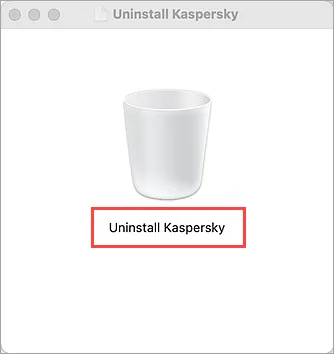
For a normal Kaspersky for Mac installation, open the Applications folder, start Kaspersky, choose Help > Uninstall Kaspersky, and confirm Uninstall. This is the cleanest path because the installed app knows which components and permissions belong to that product.
Kavremover is a Windows executable and is not the normal Mac removal path. Kaspersky's Mac support instructions list a separate kavremover-mac.tar archive for the exceptional case where the installed application cannot be opened or removed normally.
The download button on this page opens the stable official tar URL that returned HTTP 200 on August 16, 2026. Save your account and subscription details before removal, and do not treat the utility as an antivirus scanner or a license cancellation tool.
What is the Kaspersky uninstall tool for Mac?
The phrase Kaspersky uninstall tool for Mac can describe two different things. Most users mean the uninstall command included with Kaspersky for Mac. A smaller group needs the official kavremover-mac.tar fallback because the application is missing from Applications, cannot launch, or is left in a damaged state after an upgrade.
That distinction matters because the popular Windows Kavremover page is a different product path. The Windows download is an .exe utility designed for supported Windows Kaspersky products. It should not be renamed, extracted into a Mac workflow or recommended as a universal Kaspersky removal tool.
The official Mac support page is under the Kaspersky for Mac 27 documentation path. It explains the normal in-app removal first and then points to the separate macOS archive for the exception case. Follow the support page when the installed product, macOS version or permission prompts do not match the screenshots here.
Which removal path should you use?
Use the built-in Mac uninstaller when Kaspersky opens normally. Before confirming, check that you are removing the intended Kaspersky product and record the account email, subscription status or activation details you may need for a later reinstall. Uninstalling the app does not automatically cancel a subscription.
Use the official tar fallback only when the Mac application cannot provide the normal command or Kaspersky Support directs you there. The archive is a support utility, not a general-purpose cleaner. Download it only from the Kaspersky-owned URL, keep Gatekeeper and macOS protections enabled, and stop if the file or publisher does not match the official source.
How to uninstall Kaspersky on Mac
Work through these steps in order. The normal app route is safer and easier to verify than starting with a third-party cleaner or an old archive.
1. Save account and subscription details
Record the My Kaspersky account email, product plan and renewal information. If you use an activation code, keep it private and confirm that it is stored in the account or purchase record before removing the app.
2. Open Kaspersky from Applications
Start the installed Kaspersky for Mac application from Applications or its normal menu-bar control. Close unrelated work, and check the product name so you do not remove a business or school-managed installation without the administrator's approval.
3. Choose Help > Uninstall Kaspersky
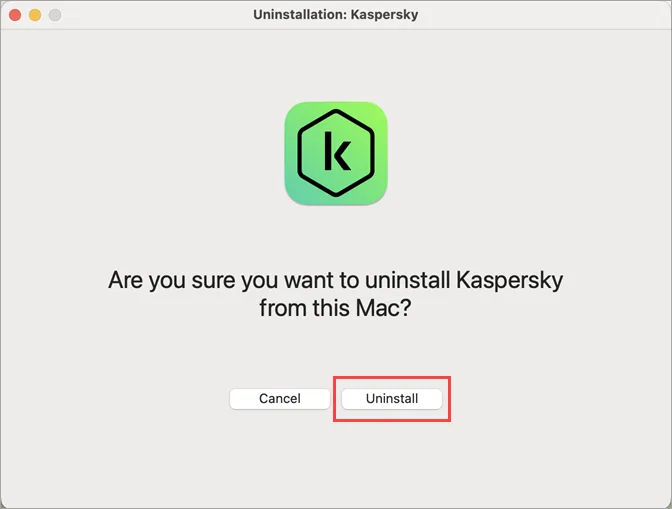
Use the app's Help menu and select Uninstall Kaspersky. Read the confirmation dialog, then choose Uninstall only when the product and Mac are correct. macOS may ask for an administrator password or permission to finish.
4. Use the official archive only as a fallback
If the app is missing or cannot open, use the official Kaspersky Support page and its kavremover-mac.tar link. Do not use the Windows kavremvr.exe file, a random Mac cleaner or a repacked archive from a download mirror.
5. Confirm completion and decide what comes next
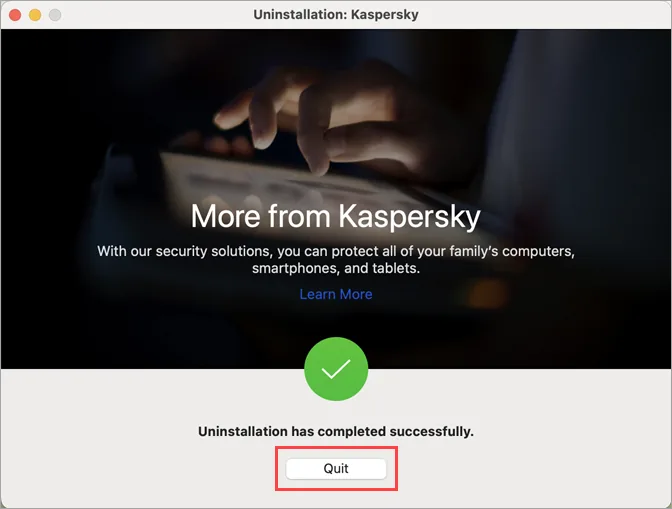
When the success screen appears, quit the uninstaller and restart only if the official instructions request it. Check Applications, login items and the account device list, then reinstall from the current Kaspersky Mac page if you still need protection.
Mac removal path vs Windows Kavremover
The word tool does not mean that every Kaspersky product uses the same utility. Platform, product family and installation state determine the correct path. This table keeps the Mac archive, Windows utility and malware scanner separate.
If your case does not match one of these rows, pause before deleting files manually. Use the official support page for the installed product and keep a record of the account or license details needed to restore protection.
| Situation | Recommended action |
|---|---|
| Kaspersky opens normally on macOS | Use Help > Uninstall Kaspersky inside the app. |
| The Mac app is missing or damaged | Open Kaspersky Support and use the verified kavremover-mac.tar fallback. |
| A Kaspersky product is installed on Windows | Use the separate Kavremover Windows guide only when normal Windows removal fails. |
| You suspect malware remains | Use a supported on-demand scanner such as the separate Kaspersky Virus Removal Tool page; uninstalling is not a malware scan. |
| You found a third-party cleaner or repacked archive | Do not run it. Return to the Kaspersky-owned support or product page. |
Mac uninstall troubleshooting
Removal problems often come from permissions, an incomplete older installation or a managed Mac. The checks below keep the fix tied to the official product path.
| Problem | What to check |
|---|---|
| There is no Uninstall Kaspersky command | Confirm that you opened the installed Kaspersky for Mac app, not a shortcut or a browser page. If the app is incomplete, follow the official Support page to the Mac archive fallback. |
| macOS asks for a password or permission | Use an administrator account or ask the Mac owner. Do not disable Gatekeeper, System Integrity Protection or security prompts just to force removal. |
| Kaspersky still appears after removal | Quit the app, restart if the official flow requests it, and check Applications and login items. Do not delete random system files; use product-specific support if components remain. |
| The subscription disappeared from the Mac | Uninstalling removes local application components, not the account entitlement. Sign in to My Kaspersky and verify the plan and device list before reinstalling. |
| You want to install Kaspersky again | Use the current Kaspersky for Mac page, verify the regional plan and macOS requirements, and install only the package offered by the official source. |
| The tar archive will not open | Check that the download completed, the file remains a .tar archive and the URL is media.kaspersky.com. If the file or signature is unexpected, delete it and return to the official Support page. |
Safety note: do not replace official removal with a cleaner
Security software has system extensions, network filters, login items and account relationships that a generic cleaner may not understand. Do not use cracked utilities, scripts that promise forced removal, renamed Windows executables or archives from anonymous mirrors. Keep important files backed up, preserve the account information needed for reinstall, and contact Kaspersky or the device administrator when the Mac is managed or unstable.
Kaspersky uninstall tool for Mac FAQ
Is there a Kaspersky uninstall tool for Mac?
Yes, but the normal route is the Uninstall Kaspersky command inside the installed Mac app. Kaspersky also documents a separate kavremover-mac.tar fallback for cases where the app cannot be opened or removed normally.
Can I use Windows Kavremover on macOS?
No. The kavremvr.exe download is a Windows utility. Use the Mac app's uninstaller or the official Mac archive documented by Kaspersky Support instead.
Where can I download kavremover-mac.tar?
Use the official Kaspersky Support page and its Kaspersky-owned media link. The direct URL on this page returned HTTP 200 and application/x-tar on August 16, 2026, but the archive is still a fallback rather than the first step.
Does uninstalling Kaspersky cancel my subscription?
No. Removing the local app does not by itself cancel a subscription or delete the My Kaspersky account. Check the account or purchase provider separately if you need to change billing or renewal.
Why is Kaspersky not visible in Applications?
The app may be incomplete, installed under another account, already partially removed or managed by an organization. Use the official Support instructions rather than deleting unrelated files or installing a third-party cleaner.
Should I use a Mac cleaning app to remove Kaspersky?
Avoid generic cleaning apps for this task. They may remove files without handling security extensions, permissions or account state. Use the documented Kaspersky route and ask support for an unusual installation.
Official sources checked
- Kaspersky Support: uninstall Kaspersky for MacOfficial Mac removal instructions, screenshots and the exceptional archive path.
- Kaspersky official Mac product pageCurrent product and reinstall route; plan and availability can vary by country.
- Official kavremover-mac.tar fileKaspersky-owned fallback archive verified at HTTP 200 on August 16, 2026.