
Quick answer: prepare the installer while you are online
An offline installer is a package you can save before moving a computer to a network where the initial download is difficult. It is not the same thing as an installer that never needs updates. Kaspersky products can still need a current release, account sign-in, activation, database updates, or a later connection after setup.
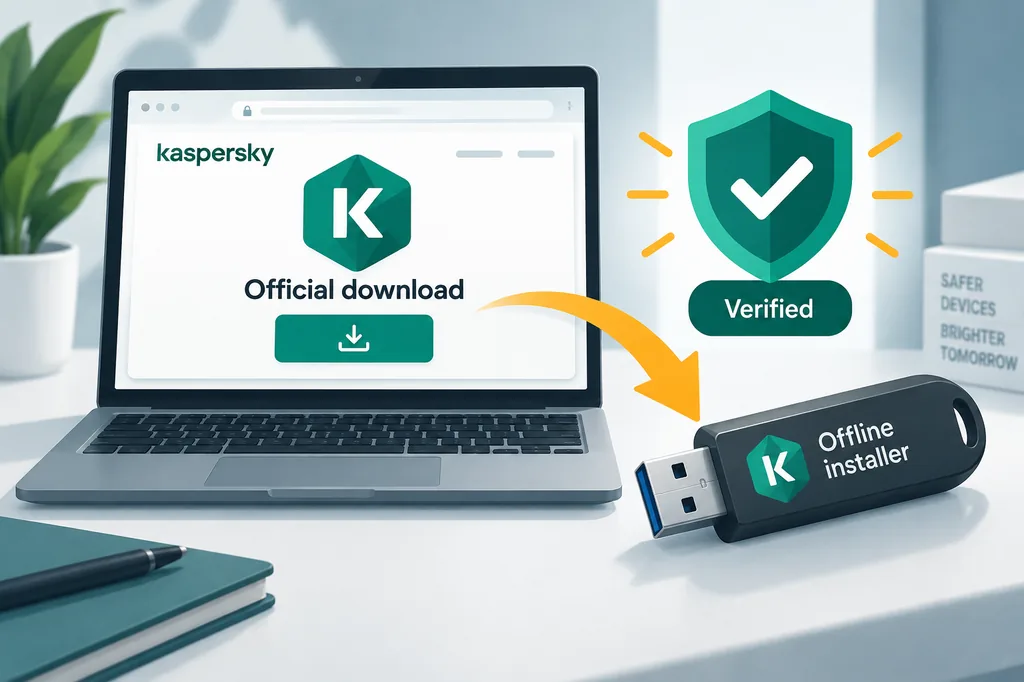
What Kaspersky offline installer means
People use the phrase Kaspersky offline installer for several different things. They may mean a complete Windows package saved on a USB drive, a business deployment package downloaded from an account portal, an installer that can start without a live connection, or simply a web installer that they hope will work later. Those are different delivery models and do not have the same support or update behavior.
A true offline-ready package should be identified by Kaspersky documentation for the exact product, operating system, architecture, and licence type. A filename that contains Kaspersky, an old forum attachment, or a download page with a large button is not enough evidence. Keep the official page, product name, release context, and checksum or signature instructions together with the file when Kaspersky provides them.
The word offline describes the first installation step, not permanent protection without a network. Security databases, program patches, subscription checks, and account features can need a connection. A machine that stays offline for a long time may install correctly but still lack current protection.
Where to get a Kaspersky offline installer
Use the official Kaspersky downloads page first. The page can route you to a current consumer product, a regional storefront, an account portal, or a product-specific support article. Open it on a trusted connection, select the product that matches the licence, and save the exact destination URL in your preparation notes.
If the public page offers only an online bootstrapper, treat that as a signal to ask for the supported offline method rather than searching for a random executable. Business administrators may receive packages through a customer portal or deployment documentation. Home users may be directed to a current product download or an account-based installation flow. The correct answer depends on the licence and platform.
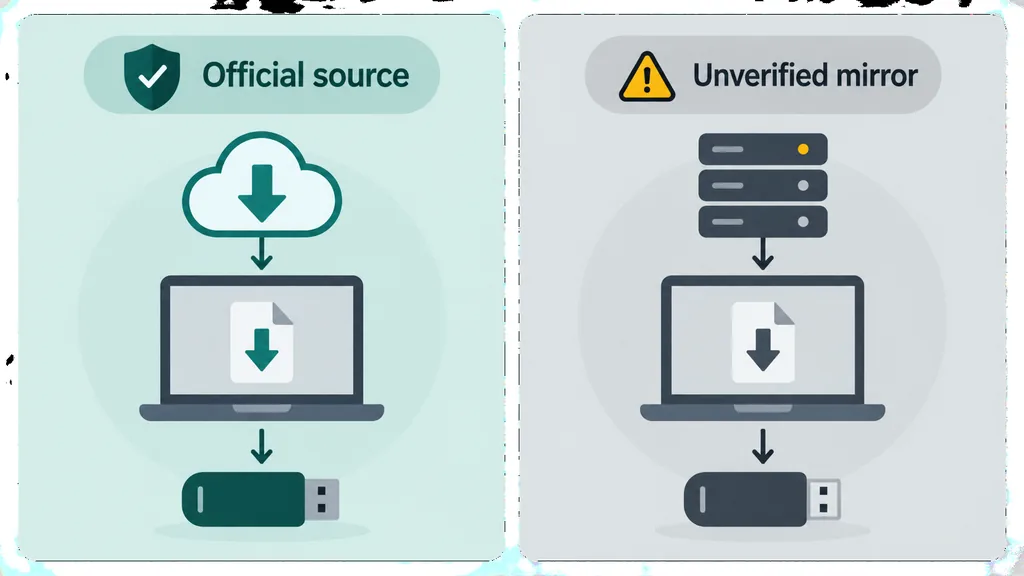
Avoid pages that promise a pre-activated build, a cracked offline installer, a permanent full version, a secret mirror, or an old release with no support context. Such claims change the security and licensing risk, and a clean-looking filename cannot replace a first-party source or a verifiable signature.
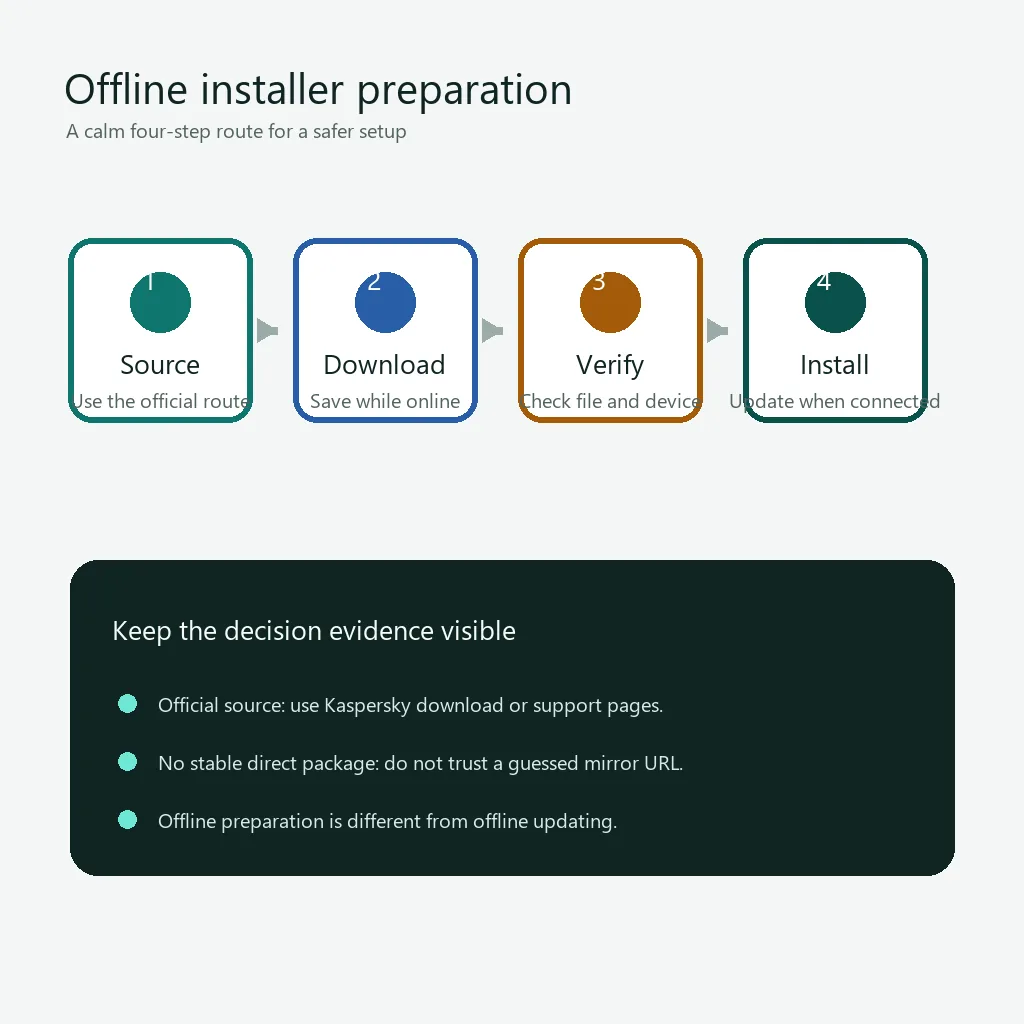
Step by step: prepare and use the installer safely
Use this order when you need to move an installer to a computer with limited or delayed internet access.
1. Identify the product and licence
Write down the Kaspersky product, platform, architecture, subscription or activation route, and the account that owns it. A Standard consumer installer and a business deployment package are not interchangeable just because both contain the Kaspersky name.
2. Open the official route while online
Use the official downloads or support page, confirm the region and product, and record the page date. If Kaspersky provides a package choice, follow its own documentation rather than a search result that redirects through a download portal.
3. Save the package and its verification context
Store the installer in a clearly named folder with the source URL, product name, release information, and any checksum or signature instructions. Scan the storage device and protect it from accidental replacement before carrying it to another computer.
4. Check the destination computer
Confirm the operating-system release, free disk space, administrator access, architecture, and removal of incompatible security software. An offline package cannot repair a platform mismatch or an unsupported legacy product.
5. Install, activate, and reconnect for updates
Run the package with the permissions Kaspersky documents, review the account and licence screen, and restart if requested. Reconnect as soon as practical to obtain program updates and current security databases; record any exact error before trying another source.
Choose the right Kaspersky route
The safest route depends on what you are trying to move offline. Use the comparison below before downloading a file. It keeps this general guide from replacing the more specific product instructions already available on this site.
An offline preparation guide is useful for planning, but it cannot make an unsupported product current. If a package is several years old, treat it as a temporary installation input and confirm the current migration or upgrade path with Kaspersky before relying on it.
When a route asks for an activation code or account, follow the licence owner’s instructions.
| Situation | Recommended route |
|---|---|
| Home user preparing Windows protection | Open the current consumer download route, match Standard, Plus, or Premium to the licence, and ask support if a full offline package is required. |
| Business or managed deployment | Use the Kaspersky business account, deployment documentation, and package requirements for the exact product and management server. |
| Old Anti-Virus, Internet Security, or Total Security licence | Read the existing migration guide before copying an old installer. A current Standard route may replace the legacy product. |
| A machine that cannot connect during setup | Prepare the approved package on a trusted online computer, carry the verification context with it, then reconnect for updates after installation. |
| A mirror promising an activated or cracked package | Do not use it. Return to Kaspersky downloads or support and keep credentials away from third-party installers. |
Common Kaspersky offline installer problems
The exact message usually points to a product, platform, account, package, or network mismatch. Capture it before replacing the file.
| Problem | What to check |
|---|---|
| The installer starts but asks for internet | A bootstrapper may need to download product files or validate an account. Check whether Kaspersky documents a complete package for your product instead of assuming the file is broken. |
| The licence or activation code is rejected | Confirm the product family, region, account, subscription status, and date. Use the activation guide or Kaspersky support instead of a key generator. |
| The file came from a mirror | Stop before running it. Find the matching official route, verify any published signature or checksum, and replace the storage copy if its provenance cannot be established. |
| Installation finishes but protection is out of date | Reconnect to obtain program and database updates, then check the product status. Offline preparation does not remove the need for ongoing maintenance. |
| Another security product blocks setup | Read Kaspersky's compatibility and removal instructions, make a backup, and do not disable protections permanently for an unknown package. |
Why this site does not host an offline executable
A product-neutral installer can be stale, region-specific, account-bound, or replaced by a new Kaspersky product family. Hosting a copied executable here would make it impossible to prove that the file is current and unchanged. This site links to official Kaspersky pages, explains how to prepare a supported package, and leaves version, signature, licensing, and regional decisions to Kaspersky.
Kaspersky offline installer FAQ
Does Kaspersky provide an offline installer?
Kaspersky may provide complete or deployment-specific packages for some products and customers, but the public route can vary by product, region, licence, and release. Start with official downloads or support and confirm the exact package before copying it.
Can I install Kaspersky without internet?
You may be able to start or complete installation with a prepared package, but activation, account checks, program updates, and current security databases can still require a connection. Offline installation is not the same as permanently offline protection.
Where is the official Kaspersky offline download link?
No stable product-neutral direct file URL was verified for this guide. Use the official Kaspersky downloads page and follow the product-specific support or account route shown for your region.
Can I copy the installer to a USB drive?
Yes, if the package is obtained from an official route and the storage device is trusted. Keep the source URL, product name, release context, and any checksum or signature instructions with the file.
Is an old Kaspersky offline installer safe to use?
Age alone does not prove authenticity or support. An old package may be genuine but unable to receive current updates, or it may belong to a product that has migrated. Check the current product guidance before relying on it.
Why should I avoid a cracked offline installer?
A cracked or pre-activated package can be modified, bundle malware, steal credentials, or violate the licence. It also removes the source and update context needed to decide whether the installation is trustworthy.
Official sources checked
- Kaspersky downloadsOfficial product and regional download entry point checked for the current public route.
- Kaspersky Antivirus downloadOfficial consumer download page checked to compare the current product route with a generic offline request.
- Kaspersky supportOfficial knowledge center for product requirements, installation instructions, updates, and support routing.