
Quick answer: start with KVRT when Windows still works
Kaspersky Virus Removal Tool (KVRT) is the lower-friction first step when you can sign in to Windows, open the desktop and run a scan. Kaspersky describes it as a free, one-time scanner and disinfector for Windows-based computers. It can scan selected locations, remove detected threats or send them to quarantine, but it does not provide ongoing protection or database updates.
Kaspersky Rescue Disk is the recovery path when malware prevents Windows from starting, blocks the installed security product or makes a scan inside the operating system hard to trust. You write its image to a USB drive or DVD, boot the computer from that media and run Kaspersky Rescue Tool outside the installed operating system. That extra preparation is worthwhile only when the normal Windows path is unavailable or unreliable.
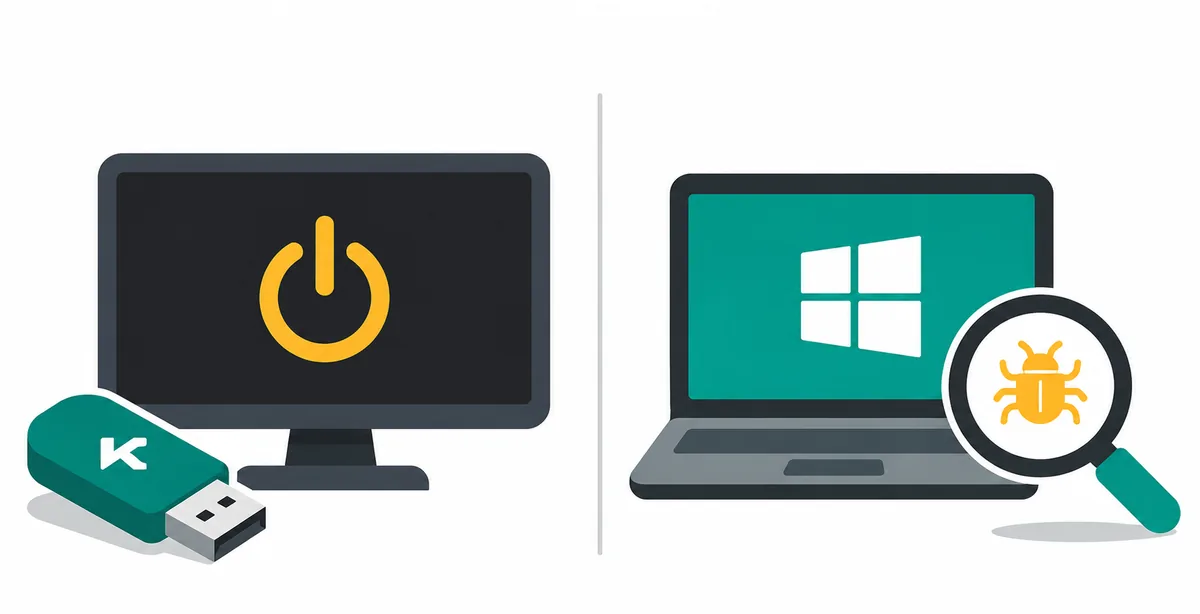
What each Kaspersky tool is designed to do
KVRT is an executable utility for a Windows session that is still usable. You download a fresh copy, run it, choose the objects to scan and review the action requested when a threat is found. Kaspersky's support instructions call it a one-time scan: the tool does not update its databases and does not replace a real-time antivirus. A new copy is needed when a later incident requires a new scan.
Rescue Disk is a bootable environment rather than another Windows installer. Its image is written to removable media, and the computer is restarted from that media. Kaspersky says the portable environment can access the computer's data independently from the installed operating system. That makes it useful when a malicious process interferes with startup or with the antivirus already installed on the disk.
The two products can both find and disinfect malware, but they solve different access problems. KVRT is quicker to begin and usually less disruptive. Rescue Disk takes longer to prepare and may require the Boot Menu, removable media and a second working computer. After either scan, restore regular protection, apply updates and keep the report; a successful scan is evidence about selected locations, not proof that every account or file is safe.
Choose by the symptom, not by the product name
Ask whether Windows can complete a normal login and whether the installed security controls respond. If the answer is yes, begin with KVRT and keep the scan scope focused. It is the better fit for a suspicious file, a second-opinion check or a malware alert that does not stop normal use.
Choose Rescue Disk when the computer cannot boot reliably, the malware stops the installed antivirus from opening, ransomware-like behavior blocks the desktop, or you need to inspect the disk before Windows loads. It is also a reasonable escalation when a Windows-based scan repeatedly fails, but record the failure first so you do not erase useful evidence.
Do not use Rescue Disk simply because it sounds more powerful: creating boot media and changing the startup device adds recovery work and can overwrite the selected USB.
A safe decision and cleanup workflow
Move from the least disruptive check to the recovery path only when the symptoms justify it.
1. Protect evidence and important files
Disconnect unnecessary network shares, save work only if the system is stable and note the symptom, last known-good time and security warning.
2. Test the normal Windows path
If Windows starts, open the official KVRT route from a clean or trusted connection, check the publisher and run a focused scan. Do not download a cracked build, disable security controls or run several removal tools at the same time.
3. Escalate to Rescue Disk when boot is blocked
If Windows will not start or the in-system scan cannot run, obtain the Rescue Disk image from Kaspersky, write it to verified media and identify the correct removable device before writing. A second computer may be needed.
4. Boot and update the rescue environment
Open the manufacturer's Boot Menu, select the USB or DVD and start Graphic mode when available. Use Limited graphic mode only when the normal interface cannot load, then update definitions when the environment supports it.
5. Scan, record the result and recover
Scan the relevant disks, choose quarantine or disinfection based on the official prompt and save the report if you may need support. Restart without the removable media, confirm that Windows and networking behave normally, then restore regular protection and patch the system.
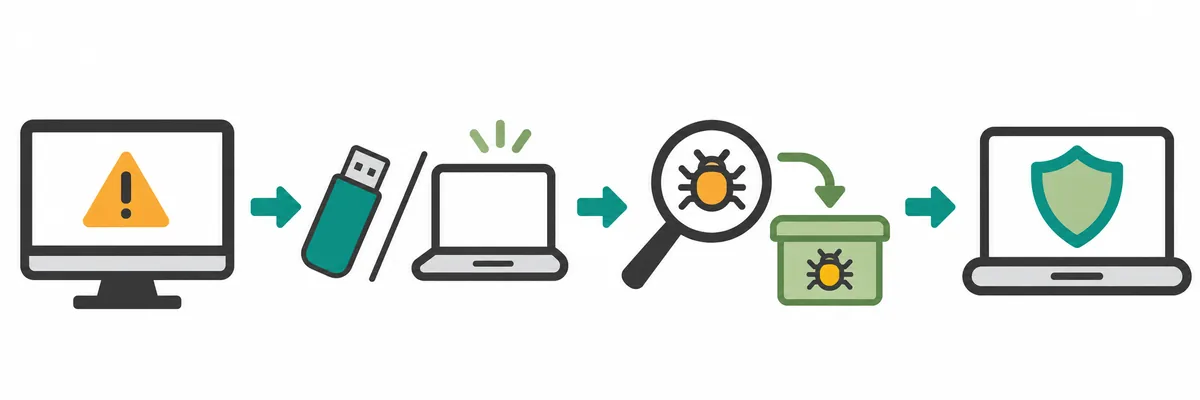
Kaspersky Rescue Disk vs KVRT at a glance
A bootable rescue environment can reach files that a running Windows process hides or locks, but it cannot undo every hardware, account or data-loss problem. KVRT is easier to repeat, but a later one-time scan needs a newly obtained copy. Keep the official download page and support article with your incident notes.
| Situation or property | Better starting point |
|---|---|
| Windows opens and the desktop is usable | Start with KVRT. It is an on-demand Windows scan with less setup. |
| Windows cannot start or keeps restarting | Use Rescue Disk after creating verified boot media on a trusted computer. |
| The installed antivirus will not open | Try KVRT only if Windows is stable; otherwise move to Rescue Disk. |
| You need a second opinion on selected folders | KVRT is usually the narrower, quicker check. Review its scan scope and report. |
| You need to inspect boot sectors or a locked system | Rescue Disk is the relevant recovery environment; follow its official boot instructions. |
| You need continuous protection afterward | Neither tool is the final answer. Install or restore a supported real-time security product. |
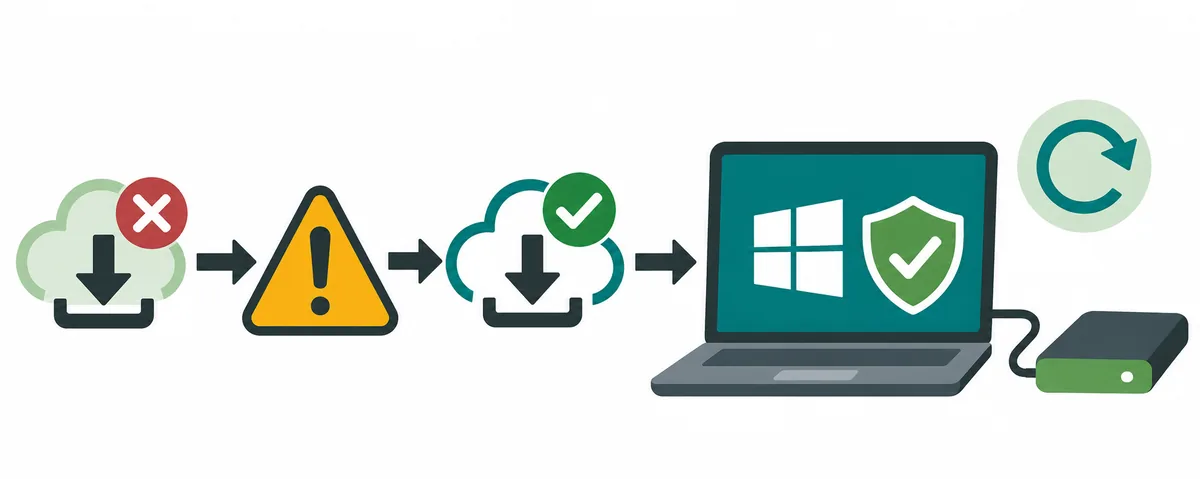
Common mistakes and what to check
A failed scan is a signal to slow down. Record the error before changing the boot order, deleting files or trying another tool.
| Problem | Safer next check |
|---|---|
| The scan finds a threat but asks for an unclear action | Save the detection name and report, read the official action guidance and quarantine when unsure. Avoid deleting a system file without a recovery option. |
| The computer ignores the Rescue Disk USB | Recreate the media from the verified image, confirm the USB device, then use the manufacturer's Boot Menu key. BIOS settings differ by model. |
| Rescue Disk loads with no keyboard or mouse | Kaspersky notes that USB input support may need to be enabled in BIOS. Use a wired device when available and follow the hardware instructions. |
| Windows starts after cleanup but behaves oddly | Keep the report, update Windows and the security product, check accounts from a clean device and restore from a known-good backup if system integrity remains uncertain. |
Why official files and a recovery plan matter
A removal utility has deep access to files and startup behavior. Downloading an ISO or executable from an anonymous mirror, using a cracked build or choosing the wrong USB can create a second incident. Verify the Kaspersky source, check the publisher, keep a backup and avoid entering passwords on a machine that may still be compromised. This guide does not host installers or activation keys.
Kaspersky Rescue Disk vs Virus Removal Tool FAQ
Is Kaspersky Rescue Disk better than Virus Removal Tool?
Neither is universally better. KVRT is usually the faster choice when Windows runs. Rescue Disk is the better fit when malware blocks startup, the desktop or the installed antivirus, because it scans from a separate bootable environment.
Can I use KVRT when Windows will not start?
Not reliably. KVRT runs as a Windows utility, so use Rescue Disk or official support when the operating system cannot boot or cannot run a trusted scan.
Does Kaspersky Rescue Disk replace an antivirus?
No. It is a recovery environment for scanning and disinfection. After cleanup, install or restore a supported real-time security product and keep it updated.
Does KVRT update its virus database?
Kaspersky's support guidance describes KVRT as a one-time tool without database updates. Obtain a fresh copy for a later scan and do not treat it as continuous protection.
Do I need another computer to create Rescue Disk media?
You may need one when the affected computer cannot start, download the image or write the USB safely. Use a trusted computer and verify which removable device will be overwritten.
Should I run both tools at the same time?
No. Start with the least disruptive path, finish its scan and record the result. Escalate to Rescue Disk when the boot state or a failed Windows scan justifies it.
Can Rescue Disk scan a computer without Windows?
Yes. It boots from USB or DVD into a portable environment and runs Kaspersky Rescue Tool independently of the installed system.
Official sources checked
- Starting Kaspersky Rescue ToolOfficial boot-media, Boot Menu and rescue-mode steps.
- How to run a scan with Kaspersky Virus Removal ToolOfficial one-time Windows scan and follow-up guidance.
- Kaspersky free toolsOfficial utility index and support routing.